

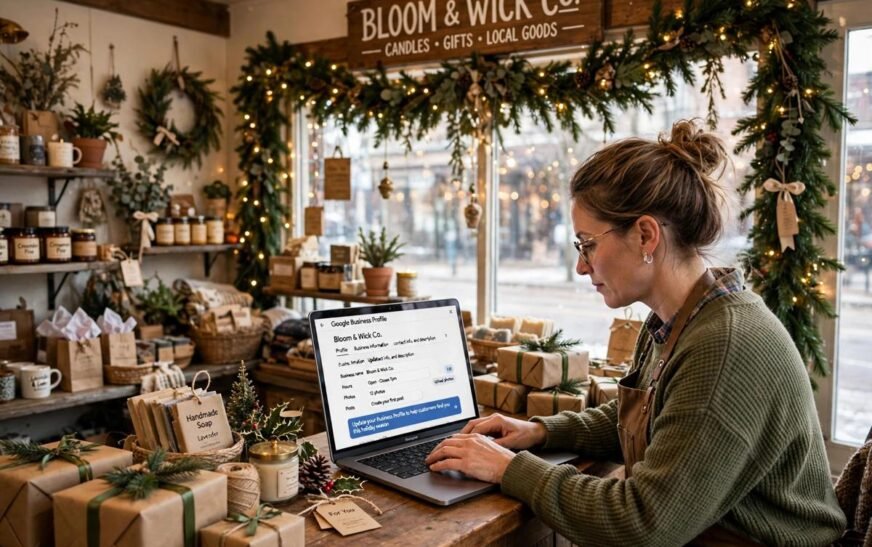
Google Business Profile festive season optimisation is the cheapest local marketing most small businesses will do all year, and it takes about two hours. Festive shoppers search differently: they check opening hours before they travel, they look for gift ideas and last-minute offers, and they read recent reviews before they call. This guide works through the five updates that matter, in the order to do them, with the exact steps from Google’s own help pages.
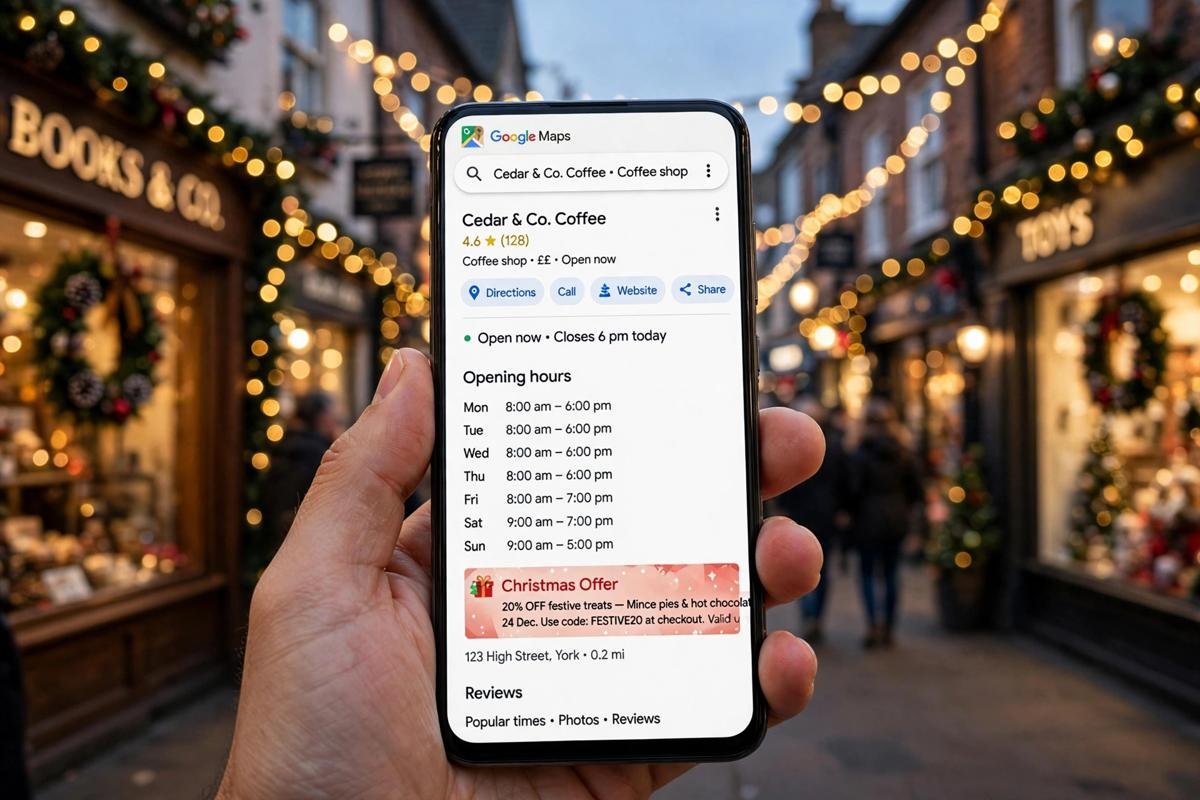
Why Do Festive Shoppers Check Your Profile First?
Because the festive season compresses the whole buying decision into one search. A shopper looking for a gift shop open late, a restaurant with a Christmas menu, or a plumber before guests arrive will see your Business Profile panel before they see your website. If the hours are wrong, the photos are three years old and the last post is from July, they move to the next result without a second thought. Google itself says it surfaces businesses with accurate hours, updated photos and active profiles ahead of those that have gone quiet, and the Talloo holiday guide puts the same point plainly: holiday searches reward profiles that look alive. The work below fixes that in one focused session.
How Do You Set Special Hours for the Festive Season?
Start with hours, because wrong hours lose real customers on the busiest days of the year. Google’s help page, “How to set special hours”, gives the exact method. Sign in at business.google.com, select Edit profile, then Hours, and open Special hours. Pick each date, then either confirm your regular hours or enter the actual festive hours, or tick Closed if you are shut all day. Google recommends confirming your hours for official holidays even when they stay the same as usual, so customers can see the information was checked.
Cover every date that differs from your normal week: Christmas Eve, Christmas Day, Boxing Day, New Year’s Eve and New Year’s Day at minimum, plus any late-night shopping evenings you run in December. Two rules from Google catch people out. First, special hours only cover changes of up to six days in a row. If you close for seven days or more, mark the business as Temporarily closed instead. Second, special hours only show if your main hours are set to “Open with main hours”. If that setting is wrong, your festive hours will not display at all, so check it before you save anything.
Should You Rewrite Your Description and Categories?
Yes, and this is the highest-leverage fix after hours. The description field allows up to 750 characters, and most businesses wrote theirs once at setup and never touched it. Rewrite it in plain language for the season: name the specific services you provide, the area you serve, and the festive offer that matters most, such as gift vouchers, Christmas menus, extended hours or last-order dates for delivery. Drop vague phrases like “quality service” and “trusted provider”, which tell a customer nothing.
Then check your primary and secondary categories. Categories drive which searches your profile appears in, so a wrong or overly broad category costs you festive searches every day. A plumber should be listed as “Plumber”, not “Contractor”, and a Thai restaurant as “Thai restaurant”, not “Restaurant”. Use the most specific category that accurately describes your main service, and review it at least once a year. If you sell seasonal products, add them as products on the profile with clear prices, so gift shoppers see them without clicking through.
What Should You Post, and How Often?
Post once a week through November and December. Google Business Profile posts show up in your profile when customers find you in search, and posts in some categories expire after seven days, so a weekly rhythm keeps something fresh visible all season. Each post only needs two to four sentences: one festive offer, one schedule change, or one service that fits the season, with a photo and a button that sends customers to the page where they can book or order.
Use Offer posts for real deals, because they carry a title, start and end dates, and Google stops showing them automatically when the sale ends. Set the exact dates so a Boxing Day offer does not linger into January. One warning from Google’s help pages: a post with a phone number in the description may be rejected if the number cannot be verified as connected to the business, so keep phone numbers in your profile’s contact details instead. Plan the run in advance with a calendar so the weekly post never depends on finding time on the day. Our festive content calendar for small business gives you that plan, and our Christmas social media campaign ideas for small business will give you post angles beyond the profile itself. If you are running Black Friday deals as well, our Black Friday affiliate promotions strategy covers how to structure the offer so it protects your margin.
How Do You Answer Festive Questions Before Customers Ask?
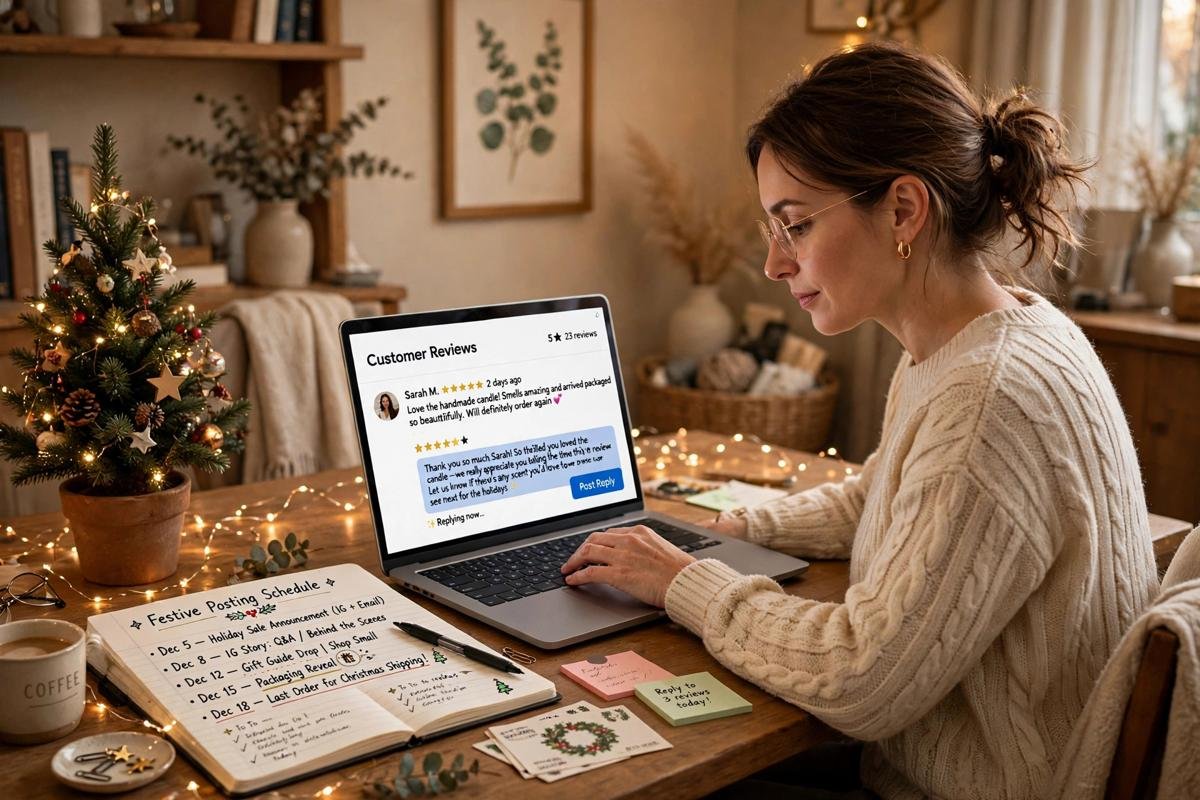
Use the Q&A feature on your profile to answer the questions customers ask every December, before they have to ask them. Seed it with the five questions that fill your inbox each festive season: What are your holiday opening hours? What is your returns policy for gifts? Do you offer gift wrapping? What is the last order date for Christmas delivery? Do you take bookings for Christmas parties? Phrase each answer in your own voice, with the specific policy, not a generic yes or no. A customer who finds the answer on your profile books; a customer who has to phone to ask may not bother. Restaurants can add a reservation link and a festive menu here, and service businesses can state their last booking date for pre-Christmas work.
How Do Festive Reviews Turn Into January Bookings?
The festive season is the best review window of the year, because footfall is at its highest and happy customers are at their most willing. Ask every satisfied customer for a review while the experience is fresh: a short follow-up text or email after a completed job or a purchase, with a direct link to your Google review form, takes less than a minute to send. Then reply to the reviews you get, including the critical ones. Look at your last twenty reviews and count how many have a reply from you. A profile with forty reviews and no owner responses looks very different from one where the owner engages with feedback, and holiday searchers read reviews before they call. On a negative review, acknowledge the experience, state what you have done or would do about it, and do not argue or paste the same reply on every review. Specific replies that mention the service received build far more trust than a copied thank you.
A Two-Hour Festive Checklist, Week by Week
Do the work in this order, and the whole profile is festive-ready in about two hours.
Week of 16 November, 30 minutes: set special hours for Christmas Eve, Christmas Day, Boxing Day, New Year’s Eve and New Year’s Day, and confirm any date where hours stay the same. Check the “Open with main hours” setting.
Same week, 20 minutes: rewrite the 750-character description for the season, check primary and secondary categories, and add festive products with prices.
Same week, 20 minutes: add five to ten fresh photos: the decorated shopfront, the team, the festive products or the work as it looks now. Encourage customers to upload photos of their visit too.
Weekly from late November, 10 minutes each: publish one Google Post per week, one Offer post per real deal with exact start and end dates, and seed the Q&A with your five most asked festive questions.
Daily through December, 10 minutes: reply to new reviews and questions the same day. A same-day reply during the festive rush is the review habit that carries into January.

How Do You Tell If Your Google Business Profile Festive Season Optimisation Worked?
Check your Business Profile performance data in the first week of January and compare it with November. Look at the interactions that lead to money: phone calls, direction requests, website clicks and bookings made from the profile. If calls and direction requests rose through December while your posts were going out weekly, the profile did its job. If they stayed flat, the likely cause is a gap in the basics: hours that were never confirmed, a description that still says nothing seasonal, or posts that stopped after the first week. Fix the gap, then measure again after the January sales. For a fuller framework, our guide to measuring digital marketing ROI for small business shows how to tie profile interactions to revenue instead of counting clicks. Google’s own help page on special hours is the reference to keep bookmarked: How to set special hours on Google Business Profile.
Conclusion
Google Business Profile festive season optimisation comes down to five jobs: confirm every festive date in Special hours, rewrite the description and categories for the season, post once a week with real offers and exact dates, answer festive questions in advance through Q&A, and reply to reviews the same day. None of it needs a developer or a marketing background, and the whole first pass takes about two hours. Do it before the last week of November, and your profile will be the one festive shoppers trust when they are ready to buy.
Frequently Asked Questions
How do I set special hours on Google Business Profile?
Sign in at business.google.com, select Edit profile, then Hours, and open Special hours. Pick the date, then confirm your regular hours, enter different hours, or tick Closed. Google recommends confirming hours for official holidays even when they match your regular hours.
What if my business closes for a week over Christmas?
Do not stretch special hours across the closure. Google’s help page says special hours cover up to six days in a row, so for a closure of seven days or more, or of unknown length, mark the business as Temporarily closed instead, then restore your regular hours when you reopen.
How long do Google Business Profile posts last?
For Google Business Profile festive season optimisation, plan on one post a week: posts in some categories expire after seven days, which is why a weekly post is the practical target through November and December. Offer posts are different: they carry their own start and end dates, and Google stops showing them when the sale ends.
Can I put a phone number in a Google Business Profile post?
Google’s help page warns that a post with a phone number in the description may be rejected if the number cannot be verified as connected to the business. Keep phone numbers in your profile’s contact details and use the post text for the offer itself.
Should I confirm my hours if they do not change over the holidays?
Yes. Google recommends confirming hours for official holidays even when they are the same as your regular hours, because the confirmation shows customers the information was checked rather than left to go stale.