

Instagram broadcast channels for business growth are the closest thing Instagram gives you to an owned audience. Instead of hoping the algorithm shows your post, every message you send lands directly in your subscribers’ inboxes, sitting right next to their chats with friends. For small and growing businesses, that inbox placement turns announcements, polls and exclusive offers into a reliable source of repeat engagement and sales. This guide shows you how to set one up, what to post, and how to measure whether it is actually growing your business.
What Instagram Broadcast Channels Are
A broadcast channel is a one-to-many messaging thread inside Instagram Direct. You post; everyone who joined sees it. Only you, and any collaborators you invite, can publish. Members can react with emojis, vote in polls, reply in threads if you enable it, and answer prompts with text or photos. Unlike Stories, messages do not expire after 24 hours. Unlike group chats, there is no 250-person cap, and the conversation stays signal-rich because members cannot post messages of their own.
Real brands use them this way: press coverage has described Shake Shack polling members on menu decisions and Cava running a channel called the “Tzatziki Town Hall” for customer input.
| Feature | Broadcast channel | Stories | Feed post |
|---|---|---|---|
| Delivery | Direct inbox, no algorithm | Algorithm-filtered | Algorithm-filtered |
| Lifespan | Permanent | 24 hours | Permanent |
| Who can post | You and invited collaborators | You | You |
| Member interaction | Reactions, polls, prompts, replies | Replies, stickers | Likes, comments |
| Best business use | Launches, offers, loyalty | Daily updates, behind-the-scenes | Discovery and reach |
How to Set Up Your Channel in 2026
Setup takes a few minutes and happens entirely in the Instagram mobile app, because channels cannot be created or posted from desktop:
- Open Instagram and tap the messages icon in the top right.
- Tap the compose icon (the pen icon) to start a new message.
- Select “Create broadcast channel”.
- Name your channel for value, not vanity. “Weekly Restock Alerts” tells people why to join; “Our Updates” does not. You can rename it later.
- Choose who can join: all followers, or paid subscribers if you use Instagram Subscriptions.
- Decide whether to show the channel on your profile, and optionally set an end date for time-limited channels such as a launch season.
- Tap create, then send your first message straight away.
That first message is your biggest visibility moment: it triggers the one-time join notification Instagram sends to your followers. Do not waste it on “Hey everyone”. State your channel promise: what members get, how often, and why it is worth their inbox space. A short welcome plus a poll asking what they want more of works well, because the poll also tells you what your audience actually wants.
Who Can Create One: The Eligibility Rules Explained
Most guides contradict each other here, so here is the honest 2026 picture. Instagram’s Help Center currently states that a public account with more than 1,000 followers can start a channel, with the rollout still gradual in some regions. Older guides claim a 10,000-follower minimum and Creator-only access; that was true during earlier stages of the rollout, and some accounts still see the old behaviour because access is granted account by account, not all at once.
Practically, do not trust articles: check your own account. Open DMs, tap compose, and look for “Create broadcast channel”. If the option is missing, work through this checklist: switch to a Professional account (Creator or Business) in Settings, update the app, check Account Status for any guidelines strikes, and confirm the feature is available in your country. Newer accounts sometimes simply need to wait for the rollout to reach them.
One more note for businesses: if you plan to share branded content in the channel, Instagram requires paid partnership disclosure, which needs a Professional account anyway. For screenshots of the same setup flow, see Sendible’s Instagram broadcast channels guide.
Instagram Broadcast Channels for Business Growth: A Content Rhythm That Sells
A channel only drives growth if members keep notifications on. The accounts that do this well run a simple weekly rhythm built on three message types: value, participation, and conversion.
Value messages give people a reason to stay: behind-the-scenes looks at your process, quick how-to tips tied to your product, early announcements, founder voice notes. Voice notes are underrated here: they feel personal and take seconds to record.
Participation messages turn lurkers into signal: polls on product decisions, prompts asking for photos of how customers use your product, mini AMAs. Polls are free market research, and prompt responses, which stay open for up to 24 hours, surface the exact language customers use about your product.
Conversion messages turn attention into revenue: early access links, channel-exclusive discount codes, event invitations. Keep these to roughly one in four or five posts. If every message sells, people mute. Earn attention with value and participation first, and conversion becomes natural.
Frequency matters less than consistency. Most businesses do well with two to three posts a week; daily posting only works if every post carries genuine value. Watch your mute and leave rate closely: a spike means you are posting too often or selling too hard. Channels work best as part of a wider content distribution strategy, not as the strategy itself.
Five Business Plays Worth Copying
- The launch countdown. Build anticipation over a week, let members vote on one detail via poll, then drop the early access link in the channel first.
- The member-only offer. Share a channel-exclusive discount code such as CHANNEL10, so you can attribute sales directly to the channel.
- The customer-led roadmap. Run a prompt asking “What is the one thing you wish our product did better?” and use the answers to guide your next release.
- The event backchannel. For launches, pop-ups or webinars, send real-time updates, stock news and last-minute seats to members before anyone else.
- The reply-to-DM funnel. End selected posts with “reply with the word READY for the free guide”, then route those private replies into AI agents for marketing automation that qualify the lead and book the call.
How to Measure Whether Your Channel Is Working
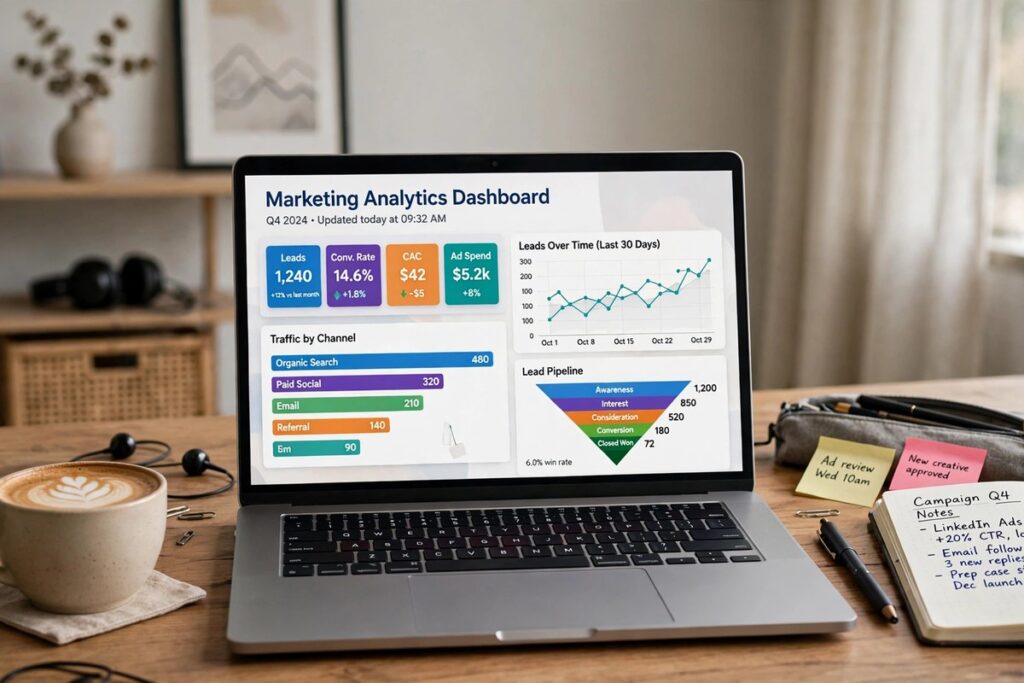
Instagram gives you basic channel insights: member count, views per message, reactions and poll participation. Track the view rate (views divided by members): active channels generally see 20 to 50% of members viewing each message. Below 10%, you are posting too often or the content is not valuable enough, and it is time to pull back.
For revenue attribution, go beyond Instagram’s built-ins. Tag every link with UTM parameters, for example utm_source=instagram and utm_medium=broadcast_channel, so your analytics show exactly what the channel drives. Pair that with channel-exclusive discount codes and make measuring marketing ROI a monthly habit. Compared with Meta ads, the channel’s cost is your time, so the ROI bar is easy to beat.
Limitations to Know Before You Start
Channels are powerful but not magic. Everything is manual: there is no scheduling and no third-party API for channel messages, so plan content you can actually post from your phone. Links work but do not generate rich preview cards, which can hurt click-through on some offers. Analytics are basic compared with feed and Reels insights. Channels are public and are not end-to-end encrypted, so never share order numbers, payment details or other sensitive information there. And remember the notification reality: members can mute you without leaving, so consistent value is the only distribution guarantee you have.
Conclusion
Instagram broadcast channels for business growth reward businesses that treat attention as something to earn, not take. Setup takes minutes, but the real work is the weekly rhythm: valuable updates, genuine participation, and occasional conversion, all measured by view rate and revenue rather than vanity follower counts. Start with a clear channel promise, protect your members’ notification space, and your channel becomes the most reliable owned audience you have on Instagram.
Frequently Asked Questions
How fast can Instagram broadcast channels for business growth deliver results?
Most businesses see early engagement (poll votes, replies) within two weeks if they promote the launch actively. Revenue impact typically takes one to three months, once the channel reaches a few hundred engaged members and you have run at least one exclusive offer. Instagram broadcast channels for business growth compound: every valuable post raises the value of the next one.
Can followers reply to broadcast channel messages?
Only if you enable replies. Members can always react with emojis and vote in polls; threaded replies and prompts (text or photo responses, open for up to 24 hours) are settings you control. Replies land as private DMs in your inbox, which is what makes channels useful for lead capture.
Do channel subscribers count as Instagram followers?
No. Subscribers and followers are separate audiences. Someone can join your channel without following you, and someone can leave the channel while still following your account. Treat your channel as its own list with its own growth metrics.
Can I create more than one broadcast channel?
Yes. Multiple channels are useful for segmenting audiences, for example one public channel for announcements and a subscribers-only channel for paid perks. Each channel is managed separately, so start with one and expand only if you can keep every channel fed with valuable content.
Why can I not find the “Create broadcast channel” option?
The usual causes: a Personal (non-Professional) account, an outdated app, a private profile, an active community guidelines strike, or regional rollout. Switch to a Professional account, update the app, check Account Status, and try again. Instagram’s Help Center notes the feature is still being released gradually, so some eligible accounts need to wait rather than change settings.